class: inverse, left, middle # PROGRAMMING INTERACTIVITY # WEEK 7 Fall 2026 --- class: inverse, left, top, large ## Programming Interactivity pt1 - Coordinate systems - Mouse position and mapping - Mouse data and callbacks - A simple drawing app - Rectangular button - Circular Button - Handling keyboard inputs - Images, Video and Sound interactivity - Custom cursor --- class: inverse, left, top, large ## Programming Interactivity pt2 - More on coordinate systems. - Screen space vs world space - Crossfading images - Almost pong - Simple animation and movement - Simple 3D - WEBGL, ThreeJS, Unity - Shaders --- class: inverse, left, top, large ## Programming Interactivity pt3 - Objects and Classes - Game design primer - Playtested mechanics and game logic - Deliberate controls and game feel - What is game state? - main menu - gameplay - game over - reset - Play testing and Debugging - Polish - More game resources - Bonus: Adding Juice to your game --- class: inverse, left, top, large # p5 Coordinate systems .center[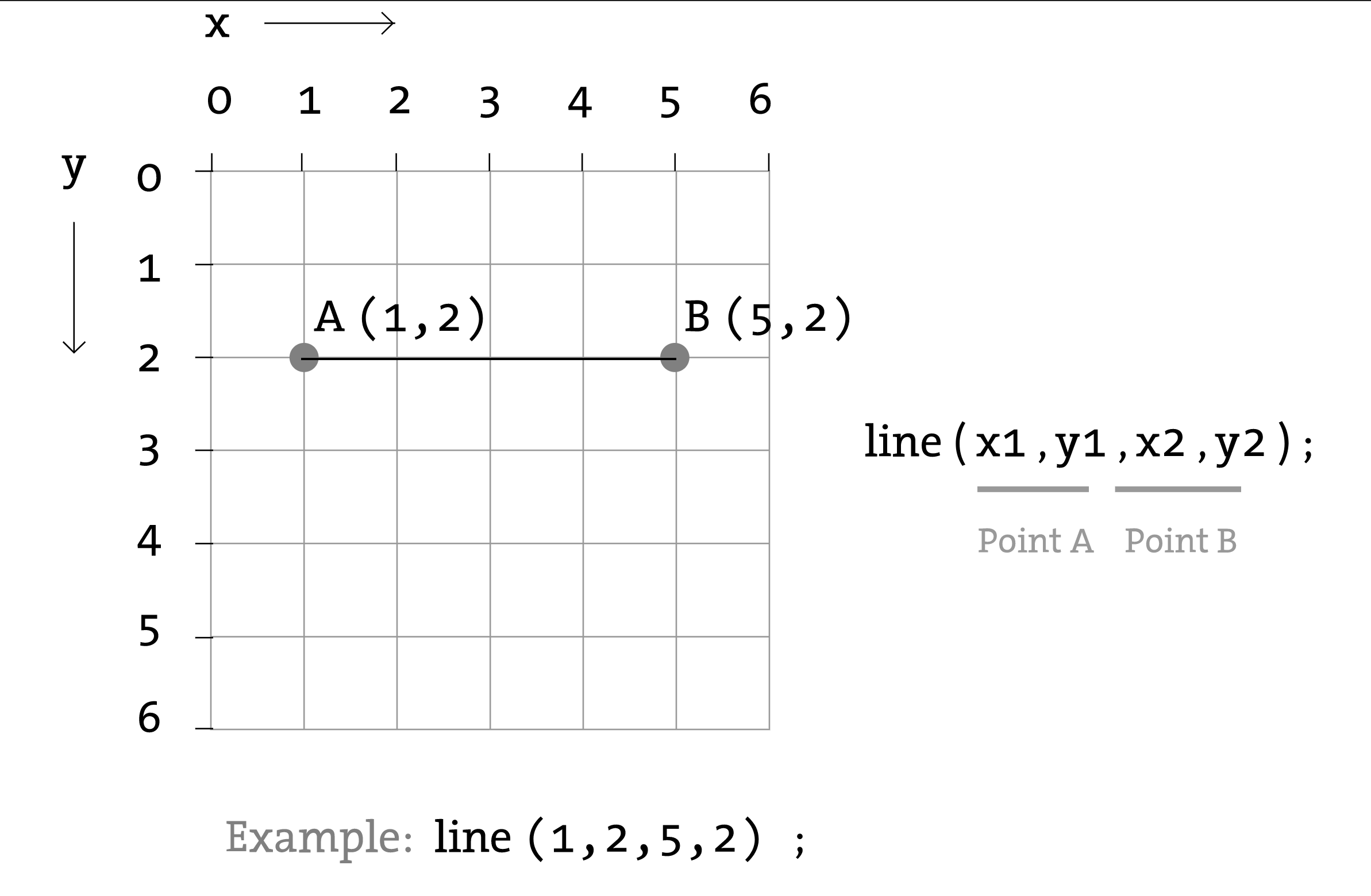] --- class: inverse, left, top, large # p5 Coordinate system Centering an object ``` push(); translate(width/2, height/2); pop(); ``` Also: ``` rectMode(CENTER); rectMode(CORNER); ``` --- class: inverse, left, top # Mouse Events Computer mice and other related input devices typically have between one and three buttons; p5 can detect when these buttons are pressed with the mouseIsPressed and mouseButton variables. Used with the button status, the cursor position enables the mouse to perform different actions. For example, a button press when the mouse is over an icon can select it, so the icon can be moved to a different location on screen. The mouseIsPressed variable is true if any mouse button is pressed and false if no mouse button is pressed. The variable mouseButton is LEFT, CENTER, or RIGHT depending on the mouse button most recently pressed. The mouseIsPressed variable reverts to false as soon as the button is released, but the mouseButton variable retains its value until a different button is pressed. These variables can be used independently or in combination to control the software. Run these programs to see how the software responds to your mouse (computer) or fingers (mobile). --- class: inverse, left, top, small # Mouse position The p5 variables mouseX and mouseY (note the capital X and Y) store the x-coordinate and y-coordinate of the cursor relative to the origin in the upper-left corner of the display window. To see the actual values produced while moving the mouse, run this program to print the values to the console: [position example](http://hello-world-week7.s3-website-us-east-1.amazonaws.com/examples/p5/mouse-position/) ([source](https://github.com/areaofeffect/hello-world/tree/main/week7/examples/p5/mouse-position)) ```javascript function draw() { background(127); fill(0,0,255); rect(xPos, yPos, 25, 25); text("x: " + int(mouseX) + " y: " + int(mouseY), 0, 10); } function mouseMoved() { // capture the mouse positions into our variables xPos = mouseX; yPos = mouseY; } ``` --- class: inverse, left, top, small # Mouse position and mapping The mouse position is most commonly used to control the location of visual elements on screen. More interesting relations are created when the visual elements relate differently to the mouse values, rather than simply mimicking the current position. Adding and subtracting values from the mouse position creates relationships that remain constant, while multiplying and dividing these values creates changing visual relationships between the mouse position and the elements on the screen. The square below has it's rotation directly mapped to the cursor. [mapping example](http://hello-world-week7.s3-website-us-east-1.amazonaws.com/examples/p5/mouse-mapping/) ([source](https://github.com/areaofeffect/hello-world/tree/main/week7/examples/p5/mouse-mapping)) ```javascript function draw() { background(127) translate(width/2, height/2); // translation to center var mappedValueX = map(mouseX, 0, 200, 0, 2*PI); // map the mouse X position to radians var mappedValueY = map(mouseY, 0, 200, 0, 5); // map the mouse Y position to scale scale(mappedValueY); // scale the sketch based on mouse position rotate(mappedValueX); // rotate the sketch based on the mouse position // draw the rectangle fill(255,255,0); rect(0, 0, 50, 50); } ``` --- class: inverse, left, top, large # Mouse callbacks and events - [https://p5js.org/reference/#/p5/](https://p5js.org/reference/#/p5/) - mouseButton - mouseIsPressed - mouseMoved() - mouseDragged() - mousePressed() - mouseReleased() - mouseClicked() - doubleClicked() - mouseWheel() --- class: inverse, left, top, large # A simple drawing app Drag your mouse cursor to draw [drawing app example](http://hello-world-week7.s3-website-us-east-1.amazonaws.com/examples/p5/simple-drawing-app/) ([source](https://github.com/areaofeffect/hello-world/tree/main/week7/examples/p5/simple-drawing-app)) ``` function setup() { createCanvas(200, 200); strokeWeight(10) background(127); } function mouseDragged() { // drag to draw a line from previouse mouse position // to current mouse position stroke(random(255),random(255),random(255)); line(mouseX, mouseY, pmouseX, pmouseY); } ``` --- class: inverse, left, top, large # Rectangular Buttons The most common type of bounding box is a rectangle. Our mouse is inside a rectangle when `mouseX` and `mouseY` are inside it's bounds. The bounds of a rectangle can be thought of like its area. - x position of the rectangle plus the rectangles width - y position of the rectangle plus the rectangles height --- class: inverse, left, top, small # Rectangular Buttons [rectangular button example](http://hello-world-week7.s3-website-us-east-1.amazonaws.com/examples/p5/button-rectangular/) ([source](https://github.com/areaofeffect/hello-world/tree/main/week7/examples/p5/button-rectangular)) [drag and drop example](http://hello-world-week7.s3-website-us-east-1.amazonaws.com/examples/p5/simple-draggable/) ([source](https://github.com/areaofeffect/hello-world/tree/main/week7/examples/p5/simple-draggable)) Snippet: ```javascript if (mouseX >= 75 && mouseX <= 125 && mouseY >= 75 && mouseY <= 125) { isOverRectangle = true; } else { isOverRectangle = false; } // draw a rectangle stroke(0); strokeWeight(5); if(isOverRectangle == true) { fill(100); cursor(HAND); // change the cursor! } else { fill(200); cursor(ARROW); } ``` --- class: inverse, left, top # Circular Buttons We can calculate the distance from our mouse position to the center of a point. If this value is less than the radius of your object - our mouse cursor is inside. [circular buttons example](http://hello-world-week7.s3-website-us-east-1.amazonaws.com/examples/p5/button-circular/) ([source](https://github.com/areaofeffect/hello-world/tree/main/week7/examples/p5/button-circular)) Snippet: ```javascript // if the distance is less than the circle's radius if(distance < 25) { isOverCircle = true; } else { isOverCircle = false; } ``` --- class: inverse, left, top, small # Handling keyboard inputs p5 registers the most recently pressed key and whether a key is currently pressed. The boolean variable keyIsPressed is true if a key is pressed and is false if not. Include this variable in the test of an if structure to allow lines of code to run only if a key is pressed. The keyIsPressed variable remains true while the key is held down and becomes false only when the key is released. ```javascript function setup() { createCanvas(200, 200); fill(245, 123, 158); textSize(50); } function draw() { background(200); text(key, 65, 65); // Display last key pressed. } ``` --- class: inverse, left, top, small # Handling keyboard inputs In addition to reading key values for numbers, letters, and symbols. If you're making cross-platform projects, note that the Enter key is commonly used on PCs and UNIX and the Return key is used on Macintosh. Check for both Enter and Return to make sure your program will work for all platforms. *The variable keyCode is used to detect special keys such as BACKSPACE, DELETE, ENTER, RETURN, TAB, ESCAPE, SHIFT, CONTROL, OPTION, ALT, UP_ARROW, DOWN_ARROW, LEFT_ARROW, RIGHT_ARROW You can also check for custom keys by looking up the keyCode of any key on a site like this: [https://www.toptal.com/developers/keycode](https://www.toptal.com/developers/keycode)* ``` if (keyCode == UP_ARROW) { y += 1; } ``` --- class: inverse, left, top, large # Handling keyboard inputs key: The key variable stores a single alphanumeric character. Specifically, it holds the most recently pressed key. The key can be displayed on screen with the text() function. ```javascript text(key, 33,65); // Display last key pressed. ``` --- class: inverse, left, top # Handling keyboard inputs This example works with an uppercase A, but not if the lowercase letter is pressed. To check for both uppercase and lowercase letters, extend the relational expression with a logical OR, the || relational operator. Line 4 in the previous program would be changed to: keyIsPressed: ```javascript function draw() { background(0); // If the 'A' key is pressed fill white if ((keyIsPressed == true) && (key == 'A')) { fill(255); } else { // otherwise, fill black fill(0); } } ``` example conditional: ``` if ((keyIsPressed == true) && ((key == 'a') || (key == 'A'))) { // your code here } ``` --- class: inverse, left, top # ASCII Table Because each character has a numeric value as defined by the ASCII table, the value of the key variable can be used like any other number to control visual attributes such as the position and color of shape elements. For instance, the ASCII table defines the uppercase A as the number 65, and the digit 1 is defined as 49. --- class: inverse, left, top, large # Simple movement [simple movement example](http://hello-world-week7.s3-website-us-east-1.amazonaws.com/examples/p5/keyboard-movement/) ([source](https://github.com/areaofeffect/hello-world/tree/main/week7/examples/p5/keyboard-movement)) ```javascript function keyPressed(){ // UP key if(keyCode == UP_ARROW) { ypos = ypos - numPixels; } // DOWN key if(keyCode == DOWN_ARROW) { ypos = ypos + numPixels; } // RIGHT key if(keyCode == RIGHT_ARROW) { xpos = xpos + numPixels; } // LEFT key if(keyCode == LEFT_ARROW) { xpos = xpos - numPixels; } return false; } ``` --- class: inverse, left, top, large # Movement + Easing [movement + easing example](http://hello-world-week7.s3-website-us-east-1.amazonaws.com/examples/p5/keyboard-movement-smoothing/) ([source](https://github.com/areaofeffect/hello-world/tree/main/week7/examples/p5/keyboard-movement-smoothing)) ```javascript function calculateEasing() { let dx = targetX - xpos; xpos += dx * easing; let dy = targetY - ypos; ypos += dy * easing; } ``` --- class: inverse, left, top, small # Movement + Gameobject [movement + game object example](http://hello-world-week7.s3-website-us-east-1.amazonaws.com/examples/p5/keyboard-movement-objects/) ([source](https://github.com/areaofeffect/hello-world/tree/main/week7/examples/p5/keyboard-movement-objects)) ```javascript class GameObject { constructor() { this.x = width / 2; this.y = height / 2; this.hmom = 0; // horizontal momentum this.vmom = 0; // vertical momentum this.speed = 10; this.size = 25; } update() { this.move(); this.render(); } move() { this.x += this.hmom; this.y += this.vmom; // dampening: lose 10% of the momentum every frame this.hmom *= 0.9; this.vmom *= 0.9; this.checkCollisions(); } } ``` --- class: inverse, left, top, large # Images [Simple load image example](http://hello-world-week7.s3-website-us-east-1.amazonaws.com/examples/p5/images-load/) ([source](https://github.com/areaofeffect/hello-world/tree/main/week7/examples/p5/images-load)) ```javascript var img; function preload() { img = loadImage("img/sva.jpg"); } function setup(){ createCanvas(200, 200); } function draw(){ background(200); image(img, 0, 0, 200, 200); } ``` --- class: inverse, left, top, large # Images [Simple load image II](http://hello-world-week7.s3-website-us-east-1.amazonaws.com/examples/p5/images-cursor/) ([source](https://github.com/areaofeffect/hello-world/tree/main/week7/examples/p5/images-cursor)) ```javascript var img; var ufo; function preload() { img = loadImage("img/sva.jpg"); ufo = loadImage("img/ufo.png"); } function setup(){ createCanvas(200, 200); } function draw(){ background(200); image(img, 0, 0, 200, 200); image(ufo, mouseX - ufo.width/2, mouseY - ufo.height/2); } ``` --- class: inverse, left, top, large ## Programming Interactivity pt2 - Crossfading images - Almost pong - Simple animation and movement - Easing - Simple 3D - WEBGL, ThreeJS, Unity3D - Shaders --- class: inverse, left, top, large # Crossfading Images [crossfading images example](http://hello-world-week7.s3-website-us-east-1.amazonaws.com/examples/p5/images-crossfade/) ([source](https://github.com/areaofeffect/hello-world/tree/main/week7/examples/p5/images-crossfade)) ```javascript var img; var img2; function preload() { img = loadImage("img/sva.jpg"); img2 = loadImage("img/cat.jpg"); } function setup(){ createCanvas(200, 200); } function draw(){ background(200); // background image, tint() sticks between frames so clear it noTint(); image(img2, 0, 0, 200, 200); // second image, fade it in as the mouse moves right var alpha = map(mouseX, 0, width, 0, 255); tint(255, alpha); image(img, 0, 0, 200, 200); } ``` --- class: inverse, left, top, large # Combining it all # Almost pong [almost pong example](http://hello-world-week7.s3-website-us-east-1.amazonaws.com/examples/p5/almost-pong/) ([source](https://github.com/areaofeffect/hello-world/tree/main/week7/examples/p5/almost-pong)) --- class: inverse, left, top # Screen space vs world space The mouse lives in *screen space*: `mouseX` and `mouseY` count pixels from the top left of the canvas. Once you `translate()` or `scale()` the canvas to make a camera, what you draw lives in *world space*. The two only agree while the camera has not moved. To hit test, convert the mouse into world coordinates first. [screen vs world example](http://hello-world-week7.s3-website-us-east-1.amazonaws.com/examples/p5/screen-vs-world/) ([source](https://github.com/areaofeffect/hello-world/tree/main/week7/examples/p5/screen-vs-world)): drag to pan, scroll to zoom, watch the two hit tests disagree. ```javascript // the camera: camX, camY is the world point in the center of the screen translate(width / 2, height / 2); scale(zoom); translate(-camX, -camY); // the mouse, converted from screen to world (the camera, run backwards) let worldX = (mouseX - width / 2) / zoom + camX; let worldY = (mouseY - height / 2) / zoom + camY; ``` --- class: inverse, left, top # Simple 3D: p5js + WEBGL In WEBGL mode the origin moves to the center of the canvas and +y points up. .center.center-50[] ```javascript function setup(){ createCanvas(200, 200, WEBGL); } function draw(){ background(200); rotateX(frameCount * 0.01); rotateY(frameCount * 0.01); box(200, 200, 200); } ``` --- class: inverse, left, top, large # Advanced 3D - [webGL](https://github.com/processing/p5.js/wiki/Getting-started-with-WebGL-in-p5),[ThreeJS](https://threejs.org/), [Unity](https://unity.com/), [Unreal](https://www.unrealengine.com/en-US) What do all these tools have in common? - Importing 3D models and assets - Placement, Translation, Rotations - Textures - Lighting - Shaders --- class: inverse, left, top, large ## Programming Interactivity pt3 - Objects and Classes - Game design primer - Playtested mechanics and game logic - Deliberate controls and game feel - What is game state? - main menu - gameplay - game over - reset - Play testing and Debugging - Polish - More game resources - Bonus: Adding Juice to your game --- class: inverse, left, top # Objects and classes [classes week 5 review](http://hello-world-week5.s3-website-us-east-1.amazonaws.com/#25) .center[] --- class: inverse, left, top, large # What is application state? - For a game: - main menu - gameplay - game over - reset - For an app: - login, logout, signup - current page in navigation - current page data --- class: inverse, left, top ## Programming Interactivity pt4 - Debugging - Open the console - Read the error - Put your state on screen - Slow things down - Nothing draws? --- class: inverse, left, top # Debugging: open the console Every browser has a developer console. Keep it open while you code. - Chrome on Mac: `Cmd + Option + J` - Chrome on Windows: `Ctrl + Shift + J` - Or right click the page, Inspect, then the Console tab `console.log()` prints anything you give it. Label your values so you know what you are looking at. ```javascript function mousePressed() { console.log("pressed at", mouseX, mouseY); } function draw() { // draw() runs 60 times a second, so only log every 60th frame if (frameCount % 60 == 0) { console.log("player", player.x, player.y); } } ``` --- class: inverse, left, top # Debugging: read the error Red text in the console is an error. It names the file and the line number. Click it. The three you will see most: - `ReferenceError: score is not defined` A typo, or a variable declared inside one function and used in another. - `TypeError: Cannot read properties of undefined` You asked for `player.x` but `player` does not exist yet. Find where it is created. - `404 (Not Found)` in the Network tab A `loadImage()` path is wrong. Paths are relative to `index.html`, so `loadImage("static/img/cat.jpg")` fails when the file is at `img/cat.jpg`. --- class: inverse, left, top # Debugging: put your state on screen When a game "does nothing", it is usually in a state you did not expect. Draw the state every frame so you can see it. The golf example does this in `displayInfo()`: ```javascript function displayInfo() { textSize(10); fill(255); text("launchstate: " + launchstate, 10, 20); text("angle: " + abs(capturedLaunchAngle), 10, 30); text("speed : " + capturedLaunchSpeed, 10, 40); } ``` Hide it behind a `debug` variable (or delete it) when you ship. --- class: inverse, left, top # Debugging: slow things down Sixty frames a second is too fast to watch. - `frameRate(5);` in `setup()` plays the sketch in slow motion - `noLoop();` freezes it, `redraw();` draws one frame, `loop();` resumes - `debugger;` on any line pauses the browser there. The Sources tab then shows every variable. ```javascript function keyPressed() { if (key == 'p') { noLoop(); // pause } if (key == 'n') { redraw(); // step one frame } if (key == 'o') { loop(); // play } } ``` --- class: inverse, left, top # Debugging: nothing draws? - `background()` wipes the whole canvas. Anything drawn before it in `draw()` is gone before you see it. - `setup` and `draw` are spelled exactly like that. p5 silently ignores `Draw()`. - Is `sketch.js` loaded? Check the `<script>` tag in `index.html` and the Network tab. - Is `fill()` the same color as `background()`? - `noLoop()` in `setup()` means `draw()` runs once. - Still stuck? Comment out everything in `draw()` and add it back one line at a time. --- class: inverse, left, top # Week 7 Assignment: One-button game Convert a classic arcade game into a one-button game by "automating" (eliminating) interactions that are customarily under control of the player. For example, Space Invaders uses two sets of controls: one to move the player's laser cannon back and forth, and another to fire at descending aliens. It can be changed into a one-button game by making the cannon move back and forth on an automatic schedule. Your game needs: - exactly one input: one key, one mouse button, or one touch - a start state, a playing state and a game over state (see application state) - a way to win or lose, and a way to play again Reference: [one button golf](http://hello-world-week7.s3-website-us-east-1.amazonaws.com/examples/p5/one-button-golf-like/) ([source](https://github.com/areaofeffect/hello-world/tree/main/week7/examples/p5/one-button-golf-like)) (press space) --- class: inverse, left, top # Week 7 Assignment: turning it in - A folder in your GitHub repo with `index.html`, `sketch.js` and any images - It runs when you open `index.html` - A short README: which game you started from, which control you automated, and how to play - Due before next class Stretch goal: replace your button with continuously valued data from a single sensor, such as a slider (`createSlider()`), the microphone (`p5.AudioIn`), or a knob or photoresistor on an Arduino. --- class: inverse, left, top, large # That's the basics Seven weeks ago you did not know what a variable was. Now you have: - Variables, conditionals, loops, functions - Python, JavaScript, and C - Drawing and animation in p5.js - Scope, objects, classes - Input, state, debugging The rest of the semester builds on these. Bruno takes it from here. Enjoy it, and keep making things. --- class: inverse, left, top, large # You are not alone. .center[]